
Notice:This feature may not be enabled on your account. Please contact support to gain access to this feature.
Introduction
When developing a codeframe, it is good practice to ensure that the themes within the codeframe are mutually exclusive. Themes that overlap cause ambiguity which makes coding and analysis difficult.
For example, if your codeframe contains the themes "Taste" and "Flavour", it can be hard for coders (and AI) to choose which one to use when coding.
The Duplicate Theme Check automatically checks for overlapping or duplicate codes when manually adding themes to a codeframe.
Steps Required
To access the Duplicate Theme Check feature, follow these steps:
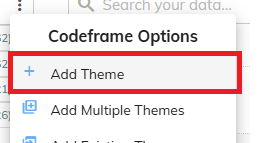
- Within the Manual Coding screen, right-click the codeframe and select "Add Theme":
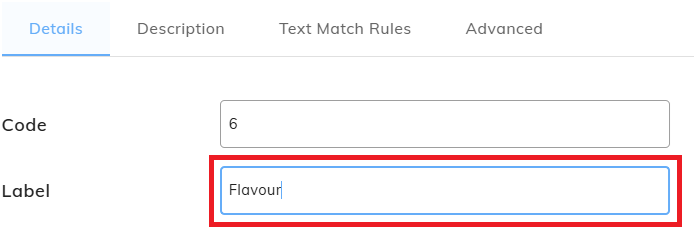
- Within the "Add Theme" dialog, enter the details of the new theme to add and press the "Add" button:
- codeit will automatically check for duplicates against existing themes within the codeframe.
If any duplicates (or similar themes) are found, a warning will be displayed, along with a similarity measure indicating the extent of the similarity:
- Use the checkboxes on the left to choose which theme(s) to add regardless of any similarity.
Press "Continue" to add the theme(s) or "Cancel All Changes" to cancel the operation.