Notice:This feature may not be enabled on your account. Please contact support to gain access to this feature.
Introduction
The manual coding screen in codeit allows you to perform a text search and filter your verbatims to show verbatims containing the search term.
There are four options that can be applied when performing a text search:
| Mode | Description |
|---|---|
| Match Case | Forces a case sensitive search. Searching for "Cat" would therefore match "Category" but not "category" |
| Match Whole Word | Forces the search to match against whole words, rather than a partial text match. Searching for "Cat" would therefore match "Cat" but not "Category" |
| Regular Expression | Allows you to search using a regular expression, rather than plain text. Searching for "Cat|Sub" would therefore match "Category" and "Subject" |
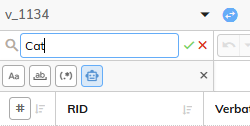
| AI Search | Allows you to search for text similar to the search term. Searching for "Cat" would therefore match "Cat", "Kitten" and "Feline" but not "Category" |
Steps Required
To access the AI Search, follow the
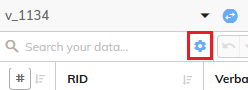
- Within the Manual Coding screen, click the options button to the right of the search box:
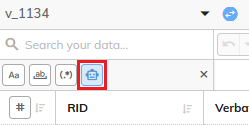
- The search options will be shown. Click the "AI Search" button to enable the AI Search option:
- Enter a search term and either press "Enter" or click the green tick to perform the search: