Introduction
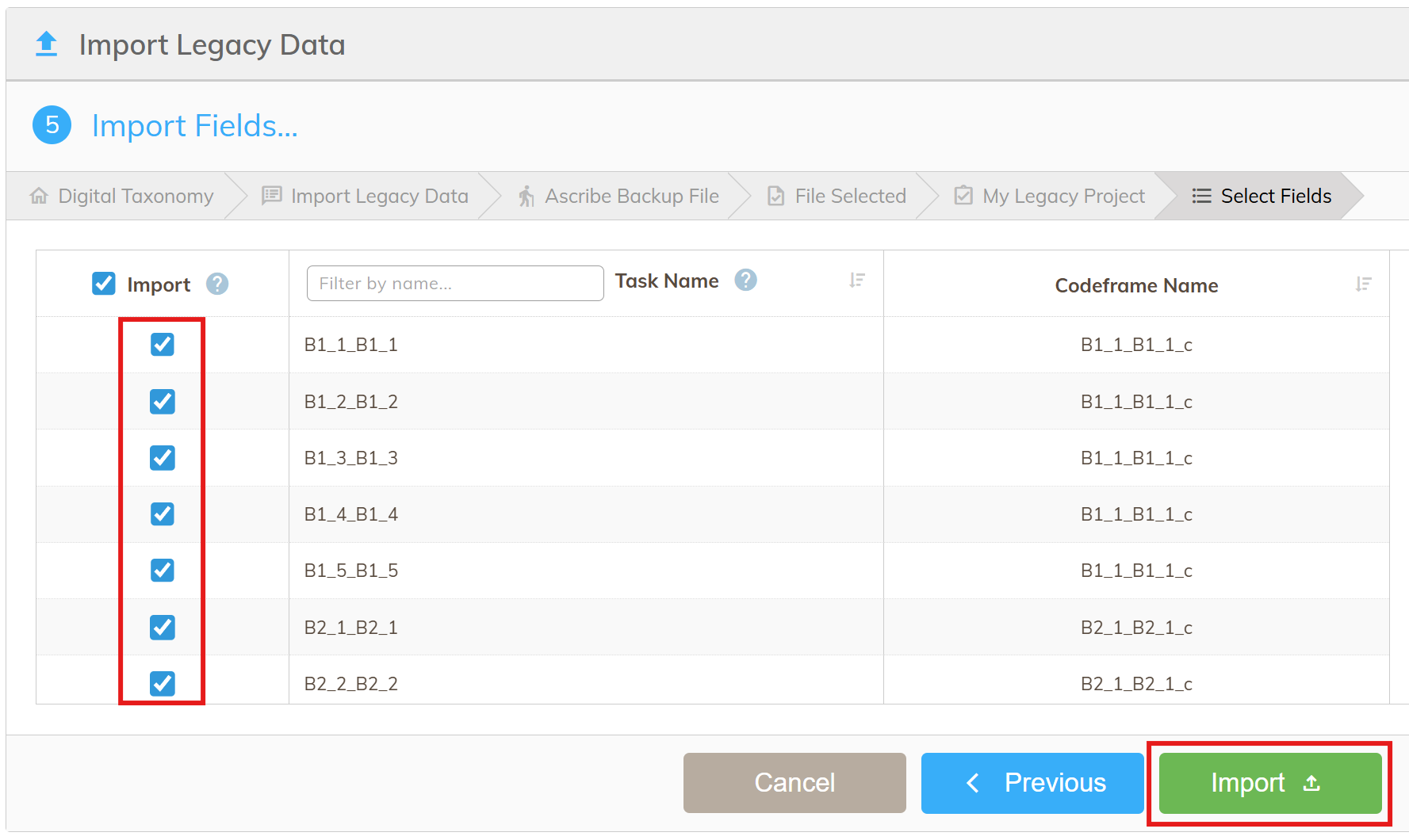
The fourth and final step of the Legacy Data Import Wizard allows you to pick and choose which fields to import from your file.
Actions Required
Select Fields
To include a field for import, tick the relevant checkbox in the "Import" column. Fields that are checked will be imported, fields that are not checked will be ignored.
The fields listed will correspond to Tasks that will be created and added to your new Project, and the name of the corresponding Codeframe that will be created, is listed next to each Task.
Collapsing Fields
You can collapse fields by clicking the fields you want to collapse and selecting the "Collapse" icon:
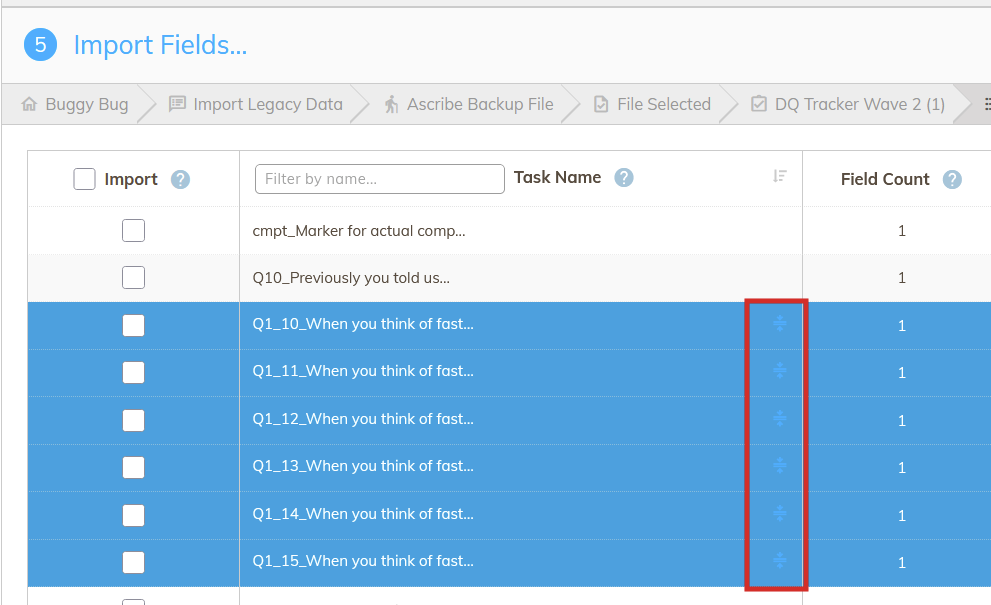
It is only possible to collapse fields which share the same codeframe in the initial file.
Once collapsed, a single Task will be created for those fields with several iterations, one for each field.
Start Import
Once you've selected the necessary fields to import, click the "Import" button to begin importing the data.